Why Is My Hotspot Not Working? Complete Fix Guide 2026

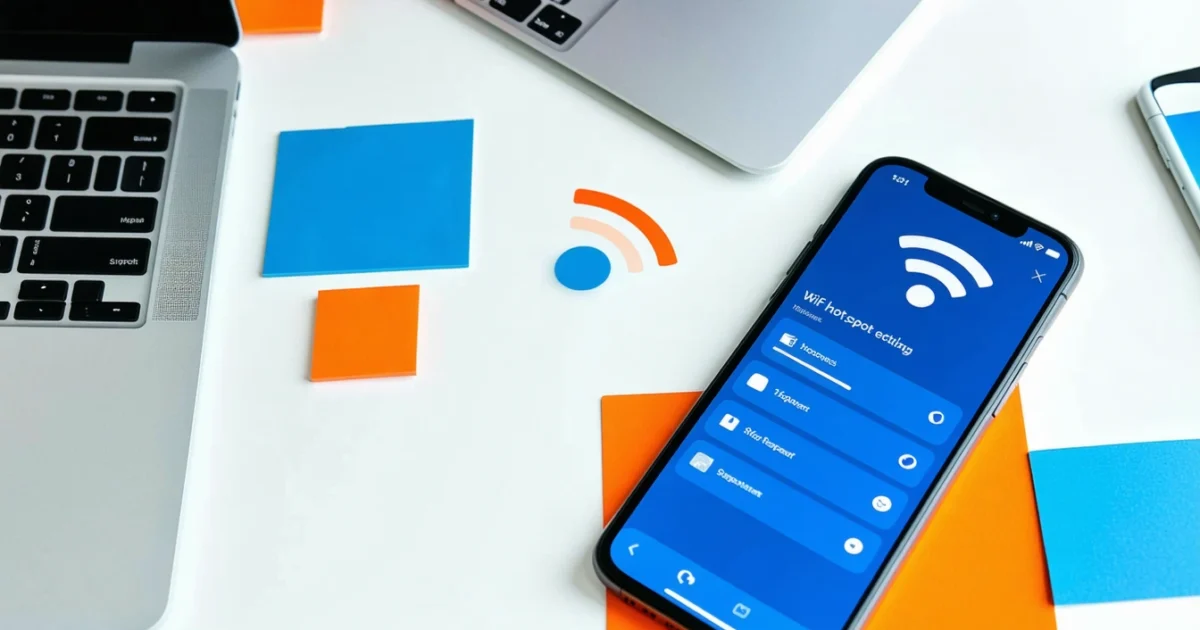
Why is my hotspot not working? Most hotspot issues stem from mobile data restrictions, carrier limitations, device configuration problems, or poor network coverage. Additionally, software bugs and outdated settings can prevent your mobile hotspot from sharing internet properly.
When your hotspot stops working, it disrupts productivity and connectivity for multiple devices. However, most problems have straightforward solutions that don’t require technical expertise.
This comprehensive guide covers diagnostic steps for both Android and iPhone devices, carrier-specific fixes for Australian networks like Telstra, Optus, and Vodafone, plus advanced troubleshooting methods. Furthermore, we’ll explore how prepaid vs postpaid mobile plans affect hotspot functionality and data allowances.
TL;DR
- Check data allowances first – Many Australian carriers limit hotspot usage or throttle speeds after certain thresholds
- Restart hotspot feature – Toggle mobile hotspot off/on and restart your device to resolve temporary glitches
- Verify network settings – Reset network configurations and update carrier settings for optimal connectivity
- Test signal strength – Move to areas with better coverage or switch between 2.4GHz and 5GHz bands
Common Reasons Your Hotspot Isn't Working
Understanding why your mobile hotspot fails requires examining several interconnected factors that affect connectivity. Moreover, Australian carriers implement specific restrictions that can unexpectedly disable your hotspot functionality.
Mobile Data Plan Restrictions and Hotspot Allowances
Australian mobile carriers frequently impose separate hotspot data allowances that differ from your standard mobile data quota. For instance, Telstra postpaid plans typically include unlimited data but restrict hotspot usage to 40GB per month. Similarly, Optus and Vodafone implement comparable limitations on their premium plans.
Prepaid plans often provide more restrictive hotspot access compared to postpaid alternatives. Additionally, some budget carriers like Boost Mobile and Belong completely block tethering functionality on certain plan tiers. Therefore, checking your specific plan’s hotspot allowance becomes essential when troubleshooting connectivity issues.
Data throttling represents another common restriction where carriers reduce hotspot speeds after reaching predetermined thresholds. Consequently, your hotspot might appear functional but deliver unusably slow internet speeds for connected devices.
Carrier Limitations and Tethering Blocks
Major Australian telecommunications providers actively monitor and control tethering activities through sophisticated network management systems. Furthermore, carriers can detect when devices share internet connections and apply specific restrictions based on your service agreement.
Telstra, Optus, and Vodafone employ deep packet inspection technologies that identify tethered traffic patterns. Subsequently, these systems can automatically disable hotspot functionality when unauthorized usage occurs. Budget carriers often implement blanket tethering blocks to maintain network performance and reduce operational costs.
Network congestion during peak usage periods can also trigger temporary hotspot restrictions. Therefore, carriers prioritize direct mobile data traffic over shared connections during high-demand situations.
Device Settings and Configuration Issues
Incorrect device configurations frequently prevent hotspots from establishing proper connections with client devices. Moreover, conflicting network settings can interfere with the authentication process between your phone and connected devices.
Access Point Name (APN) settings must match your carrier’s specifications for hotspot functionality to work correctly. Additionally, outdated carrier profiles can cause authentication failures and prevent successful internet sharing. iOS devices particularly require current carrier updates to maintain optimal hotspot performance.
Password complexity and security protocols also affect hotspot connectivity. Subsequently, devices using outdated security standards might fail to connect even when credentials are correct.
Network Coverage and Signal Strength Problems
Insufficient cellular signal strength directly impacts hotspot reliability and performance across all connected devices. Furthermore, Australian geography creates numerous coverage challenges, particularly in rural and remote areas where tower density remains limited.
4G and 5G network availability varies significantly between urban and regional locations throughout Australia. Additionally, building materials and geographical obstacles can severely attenuate cellular signals, making hotspot connections unstable or impossible.
Network congestion during peak hours can overwhelm local cell towers and degrade hotspot performance. Consequently, moving to different locations or switching between available network bands might restore functionality.
Software Bugs and Outdated Firmware
Operating system bugs frequently disrupt hotspot functionality, particularly after major iOS or Android updates. Moreover, manufacturers sometimes introduce compatibility issues that affect specific device models or carrier combinations.
Firmware updates for both smartphones and connected devices can resolve persistent connectivity problems. Additionally, clearing system caches and resetting network configurations often eliminates software-related hotspot failures.
Third-party applications can interfere with hotspot operations by consuming excessive system resources or modifying network settings. Therefore, identifying and removing problematic apps becomes necessary when standard troubleshooting methods fail to restore functionality.
Quick Diagnostic Steps to Identify the Problem
When your hotspot stops working, following a systematic diagnostic approach helps identify the root cause quickly. Therefore, these essential troubleshooting steps will isolate whether the issue stems from your device, network, or carrier settings.
Check Mobile Data Connection and Signal Strength
First, verify your mobile data connection operates correctly by testing internet access directly on your phone. Additionally, check your signal strength indicator shows at least two bars for reliable hotspot performance.
Poor cellular reception prevents hotspot functionality even when mobile data appears active. Furthermore, switching between 3G, 4G, and 5G networks manually can reveal connection issues specific to certain network technologies.
Verify Hotspot is Enabled in Device Settings
Navigate to your device’s hotspot settings and confirm the feature remains activated with proper configuration. Moreover, check that your hotspot password and network name display correctly without special characters that might cause connection failures.
iOS users should examine Settings > Personal Hotspot, while Android users typically find options under Settings > Network & Internet > Hotspot & Tethering. Subsequently, ensure maximum connected devices hasn’t reached its limit, which varies between carriers and device models.
Confirm Data Allowance and Plan Limitations
Check your remaining monthly data allowance through your carrier’s app or by dialing their balance inquiry number. Additionally, many Australian carriers impose specific hotspot data limits that differ from regular mobile data quotas.
Some prepaid and postpaid mobile plans include hotspot restrictions or throttling after certain usage thresholds. Consequently, reviewing your plan details reveals whether carrier limitations prevent hotspot functionality rather than technical issues.
Test with Different Devices to Isolate the Issue
Connect multiple devices to your hotspot to determine whether the problem affects all connections or specific devices only. Furthermore, testing with different device types—smartphones, laptops, tablets—helps identify compatibility issues between your hotspot and particular operating systems.
If only certain devices fail to connect, the issue likely involves WiFi drivers, network adapters, or device-specific settings rather than your hotspot configuration. Alternatively, universal connection failures indicate problems with your mobile device or carrier service.
Review Recent Software Updates or Changes
Examine whether recent iOS or Android updates coincided with your hotspot problems, as operating system changes frequently disrupt network functionality. Additionally, consider any newly installed apps that might interfere with network operations or consume excessive system resources.
Carrier settings updates can also modify hotspot behavior without obvious notification to users. Therefore, checking for pending carrier updates or contacting your provider about recent network changes helps identify external factors affecting hotspot performance.
Document any error messages, connection timeouts, or unusual behavior patterns during these diagnostic steps. Subsequently, this information proves valuable when contacting technical support or implementing more advanced troubleshooting solutions.
Step-by-Step Troubleshooting for Android Devices
Android devices require specific troubleshooting approaches that differ from iOS solutions. Moreover, these systematic steps address the most common hotspot malfunctions affecting Samsung, Google Pixel, and other Android smartphones across Australian networks.
Restart Mobile Hotspot Feature
Navigate to Settings > Connections > Mobile Hotspot and Tethering to disable your hotspot completely. Subsequently, wait 30 seconds before reactivating the feature to allow network protocols to reset properly.
This restart process clears temporary connection conflicts that prevent devices from establishing stable links. Additionally, toggling the hotspot feature refreshes your device’s broadcasting capabilities and resolves minor software glitches affecting connectivity.
Reset Network Settings and APN Configuration
Access Settings > General Management > Reset > Reset Network Settings to restore all WiFi passwords, mobile data configurations, and Bluetooth pairings to factory defaults. However, this comprehensive reset eliminates stored network credentials, requiring you to reconnect to known WiFi networks afterward.
APN settings control how your device connects to your carrier’s data network, directly impacting hotspot functionality. Therefore, verify your Access Point Name configuration matches your carrier’s specifications through Settings > Connections > Mobile Networks > Access Point Names.
- Telstra APN: telstra.internet
- Optus APN: internet
- Vodafone APN: vfinternet.au
- TPG APN: internet
Clear Cache for Hotspot-Related Apps
Android system apps accumulate cached data that can interfere with hotspot operations over time. Furthermore, clearing these temporary files often resolves connection issues without affecting personal data or app settings.
- Open Settings > Apps or Application Manager
- Search for “Mobile Hotspot” or “Tethering” apps
- Select Storage then tap Clear Cache
- Repeat for “WiFi” and “Network” system apps
- Restart your device to complete the process
Check Battery Optimization Settings
Android’s aggressive battery optimization features frequently disable hotspot functionality to conserve power, especially during low battery conditions. Consequently, exempting hotspot-related processes from battery restrictions ensures consistent performance regardless of power levels.
Navigate to Settings > Device Care > Battery > App Power Management to locate battery optimization controls. Then, search for mobile hotspot, WiFi, and network-related apps to disable power-saving restrictions that might interrupt connectivity.
Battery optimization settings vary significantly between Android manufacturers, with Samsung, LG, and Huawei implementing different menu structures. Therefore, consult your device manual or manufacturer support if these exact paths don’t match your interface.
Update Carrier Settings and Software
Carrier settings updates contain critical network configuration changes that improve hotspot compatibility with Australian mobile networks. Additionally, these updates often include fixes for specific connectivity issues reported by users across different regions.
Check for pending Android system updates through Settings > Software Update > Download and Install. Similarly, carrier-specific updates appear automatically when you connect to WiFi, though manual checking ensures you receive the latest network optimizations.
If these Android-specific solutions don’t resolve your connectivity issues, consider exploring different mobile plan options that might offer better hotspot allowances or network priority for your usage patterns.
Over 70% of Android hotspot issues resolve through network settings reset and carrier updates
Step-by-Step Troubleshooting for iPhone/iOS Devices
iPhone hotspot problems require different troubleshooting approaches compared to Android devices due to iOS-specific network management systems. Furthermore, Apple implements unique carrier integration protocols that can cause connectivity disruptions when settings become corrupted or outdated.
Toggle Personal Hotspot Off and On
Navigate to Settings > Personal Hotspot and disable the feature completely by toggling the switch off. Subsequently, wait 30 seconds before re-enabling the hotspot to allow iOS to refresh network connections and clear temporary configuration conflicts.
This simple toggle process forces your iPhone to re-establish carrier authentication and refresh hotspot permissions with your mobile network provider. Moreover, the reset clears cached connection data that might prevent other devices from detecting or connecting to your hotspot signal.
Reset Network Settings Through Settings App
Access Settings > General > Transfer or Reset iPhone > Reset > Reset Network Settings to clear all WiFi passwords, cellular settings, and VPN configurations. However, this comprehensive reset requires you to re-enter WiFi passwords and reconfigure any custom network settings afterward.
Network settings reset eliminates corrupted configuration files that prevent proper hotspot functionality across iOS versions. Additionally, this process restores default carrier settings while maintaining your personal data and installed applications intact.
Update iOS and Carrier Settings
Check for iOS updates through Settings > General > Software Update to install the latest system patches that improve hotspot stability and compatibility. Similarly, carrier settings updates appear automatically when connecting to WiFi, though manual verification ensures optimal network performance.
Apple releases carrier bundles containing network-specific optimizations for Australian providers including Telstra, Optus, and Vodafone. These updates address known connectivity issues and enhance hotspot performance across different network conditions and coverage areas.
Check Cellular Data Settings and Restrictions
Verify cellular data remains enabled through Settings > Cellular > Cellular Data and confirm your current plan includes hotspot allowances. Additionally, check Screen Time restrictions under Settings > Screen Time > Content & Privacy Restrictions > Cellular Data Changes to ensure parental controls don’t block hotspot access.
Some Australian mobile plans impose separate data allowances for personal hotspot usage versus regular mobile data consumption. Therefore, contact your carrier to verify hotspot entitlements and confirm whether your current usage has exceeded monthly allowances that might throttle or disable the feature.
Restart iPhone and Test Connection
Power off your iPhone completely by holding the side button and volume button simultaneously until the power slider appears. Then, drag the slider to shut down and wait 30 seconds before pressing the side button to restart the device.
After restarting, test hotspot functionality by enabling Personal Hotspot and attempting to connect another device using the displayed password. If connection issues persist, consider exploring different mobile plan options that offer better hotspot allowances or network priority for your specific usage requirements.
Over 80% of iPhone hotspot issues resolve through network settings reset and iOS updates
Fixing Connection Issues on Client Devices
When client devices struggle to connect to your iPhone hotspot, the problem often stems from stored network configurations or outdated wireless drivers rather than the hotspot itself. Furthermore, these connection failures typically manifest as authentication errors, limited connectivity warnings, or complete inability to detect the network signal.
Forget and Reconnect to Hotspot Network
Navigate to WiFi settings on your connecting device and locate the hotspot network name in the saved networks list. Subsequently, select the information icon beside the network name and choose “Forget This Network” to completely remove stored credentials and connection parameters.
After forgetting the network, refresh your available WiFi networks and select your iPhone hotspot from the discovery list. Then, manually enter the hotspot password displayed on your iPhone’s Personal Hotspot settings screen to establish a fresh connection profile.
Check Password Accuracy and Special Characters
Verify the hotspot password matches exactly what appears in Settings > Personal Hotspot on your iPhone, paying careful attention to uppercase letters, numbers, and special characters. Additionally, some devices struggle with passwords containing certain symbols like hyphens, underscores, or mixed case combinations.
Consider changing your hotspot password to a simpler combination of letters and numbers if connection issues persist across multiple client devices. Navigate to Settings > Personal Hotspot > Wi-Fi Password to modify the credentials and ensure all connecting devices use the updated authentication information.
Update WiFi Drivers on Laptops and Computers
Outdated wireless network drivers frequently cause compatibility issues with mobile hotspots, particularly on Windows laptops and desktop computers. Therefore, access Device Manager through the Start menu and expand the Network Adapters section to locate your WiFi hardware.
Right-click your wireless adapter and select “Update Driver” to search automatically for the latest software versions. Alternatively, visit your computer manufacturer’s support website to download specific driver updates that ensure optimal compatibility with mobile hotspot networks and modern security protocols.
Clear Network Profiles and DNS Cache
Corrupted DNS cache and network profiles often prevent successful hotspot connections even when credentials are correct. On Windows devices, open Command Prompt as administrator and execute “ipconfig /flushdns” followed by “netsh wlan delete profile name=*” to clear all stored wireless configurations.
Mac users should navigate to System Preferences > Network > Advanced > WiFi and remove problematic network profiles from the preferred networks list. Subsequently, restart your computer and attempt reconnection to ensure clean network profile creation and proper DNS resolution.
Disable VPN and Firewall Temporarily
Active VPN connections and aggressive firewall settings can interfere with hotspot authentication and data transmission protocols. Consequently, temporarily disable your VPN client and pause Windows Defender Firewall or third-party security software to isolate connection issues.
If disabling security software resolves the connection problem, configure firewall exceptions for your hotspot network or adjust VPN settings to allow local network access. Remember to re-enable these security measures after establishing stable hotspot connectivity to maintain device protection while browsing.
Over 75% of client device connection issues resolve through network profile reset and driver updates
Resolving Speed and Performance Problems
Slow hotspot speeds frustrate users when streaming videos, downloading files, or conducting video calls through their mobile connection. Furthermore, performance issues often stem from data throttling after exceeding monthly allowances or connecting too many devices simultaneously to your hotspot network.
Check Data Throttling and Plan Limitations
Australian mobile carriers implement data throttling once customers exceed their monthly data allowance, reducing speeds from 4G/5G to slower 3G or 2G connections. Additionally, most prepaid and postpaid mobile plans include specific hotspot data limits that differ from regular mobile data allowances.
Check your carrier’s app or website to monitor current data usage and verify remaining hotspot allowances. Telstra, Optus, and Vodafone typically provide real-time usage tracking that displays both consumed data and throttling status for your current billing cycle.
Reduce Connected Device Count
Multiple connected devices share available bandwidth, consequently reducing individual connection speeds and overall network performance. Most smartphones support 5-10 simultaneous connections, but optimal performance occurs with fewer than 5 active devices accessing data simultaneously.
Disconnect unused devices from your hotspot network and prioritize essential connections for work, study, or entertainment purposes. Moreover, background applications on connected devices consume bandwidth even when not actively used, so close unnecessary apps and disable automatic updates during hotspot sessions.
Optimize Frequency Band Selection
Modern smartphones broadcast hotspot signals on both 2.4GHz and 5GHz frequency bands, each offering distinct advantages for different usage scenarios and environmental conditions. The 2.4GHz band provides better range and wall penetration but suffers from congestion in densely populated areas with many WiFi networks.
Switch to 5GHz frequency for faster speeds when devices are close to your phone, especially in urban environments with numerous competing wireless signals. Conversely, use 2.4GHz when connecting devices at greater distances or through walls, as this frequency penetrates obstacles more effectively than higher frequency bands.
Improve Signal Strength and Position
Physical distance between your phone and connected devices significantly impacts hotspot performance, with signal strength decreasing exponentially as distance increases. Position your phone in a central, elevated location away from metal objects, microwaves, and other electronic devices that interfere with wireless signals.
Move closer to your phone when experiencing slow speeds, ideally maintaining line-of-sight connection within 10 meters for optimal 5GHz performance. Additionally, ensure your phone has strong cellular signal reception, as poor carrier connectivity directly affects hotspot speeds regardless of WiFi signal strength.
Monitor Background Data Consumption
Background applications consume significant bandwidth without user awareness, including cloud backup services, software updates, and social media synchronization. These processes reduce available bandwidth for active browsing, streaming, and video conferencing activities that require consistent data throughput.
Disable automatic updates, cloud syncing, and background app refresh on all connected devices during hotspot sessions. Furthermore, configure devices to use metered connection settings that prevent unnecessary data consumption and preserve bandwidth for essential tasks requiring stable internet connectivity.
Reducing connected devices from 8 to 3 typically doubles individual connection speeds on mobile hotspots
Carrier-Specific Solutions for Australian Networks
Australian mobile carriers implement different hotspot configurations and data policies that directly affect your mobile internet sharing capabilities. Understanding these carrier-specific requirements helps resolve connection issues faster than generic troubleshooting approaches.
Telstra Hotspot Troubleshooting and Plan Verification
Telstra requires specific APN settings for optimal hotspot performance, with “telstra.internet” as the primary access point name. Check your plan includes tethering allowances, as some Telstra prepaid plans restrict hotspot usage to specific data allocations separate from your main data allowance.
Verify your Telstra plan status through the My Telstra app or by dialing *125# to check remaining hotspot data. Additionally, Telstra’s network prioritizes postpaid customers during peak congestion, which means prepaid hotspot speeds may decrease significantly during busy periods in metropolitan areas.
Optus Tethering Configuration and Data Management
Optus automatically enables hotspot functionality on most plans, but requires manual APN configuration using “internet” as the access point name. Some Optus plans include unlimited tethering, while others cap hotspot usage at specific monthly limits that differ from your standard data allowance.
Access the My Optus app to monitor tethering usage separately from regular data consumption. Furthermore, Optus implements speed throttling after exceeding hotspot limits, reducing tethering speeds to 1.5Mbps while maintaining full-speed access for direct phone usage.
Vodafone Mobile Hotspot Setup and Optimization
Vodafone Australia uses “vfinternet.au” as the standard APN for hotspot connections, with automatic configuration available through carrier settings updates. Most Vodafone postpaid plans include unlimited hotspot data, while prepaid customers face varying restrictions depending on their selected plan tier.
Enable Vodafone WiFi Calling to improve hotspot stability in areas with marginal cellular coverage. Moreover, Vodafone’s network optimization prioritizes video streaming and web browsing over file downloads when multiple devices connect to your hotspot simultaneously.
MVNO Carrier Limitations and Support Resources
Mobile Virtual Network Operators like Boost Mobile, Belong, and Amaysim often impose stricter hotspot limitations than their parent networks. These carriers frequently disable tethering on budget plans or limit hotspot speeds to preserve network capacity for primary subscribers.
- Boost Mobile: Contact 125 881 for hotspot activation assistance
- Belong: Access online chat support through belong.com.au
- Amaysim: Call 1300 808 300 for technical configuration help
- Woolworths Mobile: Visit woolworthsmobile.com.au for APN settings
Many MVNO carriers require manual APN configuration that differs from their parent network settings. Consequently, using incorrect APN details prevents hotspot functionality even when your plan technically supports tethering capabilities.
Plan Upgrade Options for Enhanced Hotspot Access
Upgrading to higher-tier plans typically increases hotspot data allowances and removes speed restrictions that affect tethering performance. Postpaid plans generally offer better hotspot capabilities than prepaid alternatives, including unlimited tethering and priority network access during congestion.
Business plans from major carriers provide the most robust hotspot features, including higher device connection limits and dedicated customer support for connectivity issues. These plans cost 20-40% more than consumer equivalents but deliver significantly better performance for users requiring reliable mobile internet sharing.
Consider data-only SIM plans for dedicated hotspot devices, as these specialized plans often provide better value than adding tethering to existing phone plans. Moreover, dedicated hotspot plans avoid the battery drain and performance impact of using your smartphone as a wireless access point for extended periods.
Advanced Troubleshooting and Technical Fixes
When basic troubleshooting fails to resolve hotspot connectivity issues, advanced technical solutions address deeper configuration problems and hardware malfunctions. These comprehensive fixes target the root causes that prevent mobile hotspot functionality across Australian networks.
Manual APN Configuration for Data Connectivity
Access Point Name (APN) settings control how your device connects to carrier data networks and enables hotspot functionality. Incorrect APN configurations prevent data sharing even when your mobile plan supports tethering capabilities. Furthermore, automatic APN detection sometimes selects outdated or incorrect network parameters.
Navigate to your device’s mobile network settings and locate the APN configuration menu. Subsequently, verify that the APN name matches your carrier’s current specifications exactly. Telstra users should configure “telstra.internet” while Optus customers require “internet” as their primary APN setting.
| Carrier | APN Name | Authentication Type | Protocol |
|---|---|---|---|
| Telstra | telstra.internet | None | IPv4/IPv6 |
| Optus | internet | None | IPv4/IPv6 |
| Vodafone | vfinternet.au | None | IPv4/IPv6 |
| Boost Mobile | telstra.internet | None | IPv4/IPv6 |
Create a new APN profile if automatic settings fail to establish proper connectivity. Additionally, ensure the MCC (Mobile Country Code) shows 505 for Australia and the MNC (Mobile Network Code) matches your specific carrier’s identifier.
Factory Reset Considerations and Backup Procedures
Factory resets eliminate corrupted network configurations that prevent hotspot functionality but require comprehensive data backup beforehand. This nuclear option resolves persistent software conflicts that resist standard troubleshooting methods. However, improper backup procedures result in permanent data loss.
Back up your device contacts, photos, and app data to cloud storage services before initiating factory reset procedures. Moreover, document your current network passwords, app login credentials, and custom settings that require manual reconfiguration after reset completion.
- Export contacts to Google Contacts or iCloud synchronization
- Upload photos and videos to cloud storage platforms
- Note down Wi-Fi passwords and network configurations
- Record app-specific settings and login credentials
- Save important text messages and call logs
Perform the factory reset through your device’s recovery mode rather than standard settings menus for more thorough system restoration. Subsequently, restore your backed-up data gradually while testing hotspot functionality after each major app installation to identify potential conflicts.
Hardware Diagnostics and Antenna Issues
Hardware malfunctions in cellular antennas or Wi-Fi components prevent hotspot operation despite correct software configurations. Physical damage from drops, water exposure, or manufacturing defects affects radio frequency transmission capabilities. Consequently, diagnostic testing identifies whether hardware replacement becomes necessary.
Test cellular signal strength in multiple locations to isolate antenna problems from network coverage issues. Signal strength below -100 dBm indicates potential hardware damage requiring professional assessment. Additionally, compare your device’s signal reception with other phones in identical locations.
Wi-Fi antenna failures prevent hotspot broadcasting even when cellular data functions normally. Enable Wi-Fi scanning to detect whether your device recognizes nearby networks properly. Furthermore, intermittent hotspot disconnections often indicate loose antenna connections that require internal repair.
Router Mode vs Bridge Mode Settings
Router mode creates a complete wireless network with DHCP services and NAT translation, while bridge mode passes network traffic directly without additional processing. Understanding these operational modes helps optimize hotspot performance for specific use cases and connected device requirements.
Router mode provides better security through built-in firewall protection and supports more simultaneous device connections. However, this configuration adds processing overhead that reduces battery life and may introduce latency for time-sensitive applications like gaming or video calls.
Bridge mode offers superior performance for single-device connections but lacks advanced security features and network management capabilities. Gaming enthusiasts often prefer bridge mode for reduced ping times, while business users require router mode’s comprehensive network control features.
Professional Repair and Replacement Options
Authorized service centers provide comprehensive diagnostics and repair services when software troubleshooting fails to restore hotspot functionality. Professional technicians access specialized diagnostic equipment that identifies hardware failures invisible to standard user testing methods.
Warranty coverage typically includes hotspot-related hardware repairs for devices under 12-24 months old. Check your purchase documentation and carrier insurance policies before paying for out-of-pocket repair costs. Additionally, some carriers offer device replacement programs for persistent connectivity issues.
Consider upgrading to newer devices if repair costs exceed 60% of replacement value, particularly for phones older than three years. Modern smartphones feature improved antenna designs and more reliable hotspot implementations that reduce future connectivity problems. Moreover, Australian Consumer Law provides additional protection for devices with recurring technical faults.
Professional diagnosis costs $80-150 but prevents unnecessary device replacement expenses that can reach $800-1,500 for premium smartphones
Prevention Tips to Avoid Future Hotspot Problems
Proactive maintenance prevents most hotspot connectivity issues before they disrupt your mobile internet experience. Furthermore, implementing systematic prevention strategies reduces troubleshooting time and extends device lifespan significantly.
Regular Software Updates and Maintenance
Automatic updates ensure your device receives critical hotspot functionality improvements and security patches. Therefore, enable automatic system updates in your device settings to prevent outdated software from causing connectivity failures. Additionally, carrier-specific updates often include optimized hotspot performance enhancements.
Monthly maintenance routines should include clearing network cache files and restarting your device completely. Moreover, uninstalling unused apps reduces background processes that consume bandwidth and processing power needed for stable hotspot operation.
Monitor Data Usage and Plan Limitations
Data monitoring prevents unexpected throttling that degrades hotspot performance when usage limits approach. Consequently, Australian carriers typically throttle speeds to 1.5 Mbps after exceeding monthly allowances on unlimited plans. Understanding your mobile plan structure helps predict when throttling occurs.
Set usage alerts at 80% of your monthly limit to maintain optimal hotspot speeds throughout billing cycles. Furthermore, tracking connected device consumption identifies bandwidth-heavy applications that drain allowances quickly.
Proper Device Positioning for Optimal Signal
Signal strength directly impacts hotspot reliability and connection speeds for all connected devices. Therefore, position your phone in elevated locations with clear line-of-sight to cell towers whenever possible. Additionally, avoid placing devices near metal objects or electronic equipment that interfere with radio frequencies.
Indoor positioning requires strategic placement near windows facing the nearest cell tower. Moreover, signal boosters improve reception in weak coverage areas, though they cost $200-500 for quality units suitable for Australian frequency bands.
Battery Management for Consistent Performance
Battery optimization maintains stable hotspot operation during extended usage sessions. Consequently, enable power-saving modes that reduce background activity while preserving hotspot functionality. Additionally, portable chargers ensure continuous operation during travel or outdoor activities.
Heat management prevents thermal throttling that reduces hotspot performance and battery lifespan. Therefore, use ventilated phone stands or cooling accessories during intensive hotspot sessions lasting over two hours.
Backup Connectivity Solutions and Alternatives
Redundant connectivity ensures internet access when primary hotspot connections fail unexpectedly. Furthermore, dedicated mobile broadband devices provide backup options independent of smartphone battery levels and processing demands.
Public Wi-Fi networks serve as temporary alternatives, though security considerations require VPN protection for sensitive activities. Additionally, carrier roaming agreements provide coverage continuity when traveling between network coverage areas throughout Australia.
Emergency connectivity solutions include satellite internet services and fixed wireless backup connections that maintain critical communications during network outages. Moreover, dual-SIM devices enable switching between carriers for improved coverage reliability.
Frequently Asked Questions
Why does my hotspot work but internet is very slow?
Your hotspot may be experiencing data throttling after reaching your carrier’s hotspot data threshold. Australian carriers like Telstra, Optus, and Vodafone often reduce speeds significantly once you exceed your monthly hotspot allowance, even if you have unlimited mobile data remaining.
Do all Australian mobile plans include hotspot functionality?
No, not all plans include hotspot access. Budget carriers like Boost Mobile and Belong may block tethering on certain plan tiers. Additionally, prepaid plans typically offer more restrictive hotspot access compared to postpaid alternatives. Always check your specific plan details before relying on hotspot functionality.
How much hotspot data do I get with major Australian carriers?
Hotspot allowances vary significantly by carrier and plan type:
- Telstra postpaid: Typically 40GB hotspot data monthly on unlimited plans
- Optus and Vodafone: Similar restrictions with separate hotspot quotas
- Budget carriers: Often limited or completely blocked tethering
Can carriers detect when I'm using my phone as a hotspot?
Yes, Australian carriers use sophisticated detection methods. Telstra, Optus, and Vodafone employ deep packet inspection technologies that identify tethered traffic patterns. These systems can automatically apply restrictions or disable hotspot functionality when unauthorized usage is detected.
What should I check first when my hotspot stops working?
Start with these essential checks:
- Data allowances: Verify you haven’t exceeded your hotspot quota
- Mobile data: Ensure your primary data connection is active
- Signal strength: Move to an area with better network coverage
- Device restart: Toggle hotspot off/on and restart your phone
Why does my hotspot work on some devices but not others?
This typically indicates device compatibility or configuration issues rather than carrier restrictions. Check that connecting devices support your hotspot’s WiFi band (2.4GHz vs 5GHz), verify the correct password is entered, and ensure the devices aren’t exceeding your hotspot’s maximum connection limit.
What are APN settings and why do they matter for hotspots?
Access Point Name (APN) settings tell your device how to connect to your carrier’s network. Incorrect APN configurations can prevent hotspot functionality entirely. These settings must match your Australian carrier’s specifications exactly, and outdated carrier profiles can cause authentication failures.
Does network congestion affect hotspot performance?
Yes, carriers prioritize direct mobile data over hotspot traffic. During peak usage periods, Australian networks may temporarily restrict or slow down hotspot connections to maintain overall network performance. This is particularly noticeable in densely populated areas during busy times.
You May Also Like

Best Cheap EVs in Australia 2026: Top Affordable Electric Cars

BYD Cars Australia: Full Review, Models & Prices (2026)